Setup
Plugin Installation
Unzip the download for your operating system and drag INSTALL.py onto the Maya viewport. One install adds both glTF2.0 Import and glTF2.0 Export. Maya 2022-2027 on Windows, macOS, and Linux. On macOS, KTX2 texture compression is verified for Maya 2026. If NumPy is missing, the installer can install it for you (internet required).
Before you start
- Download the Windows or macOS package.
- Unzip it. Leave
INSTALL.pynext to thegltf_importer_exporter_for_mayafolder. Do not drag the script out of the zip on its own - Maya will not find the plugin files. - Install only one copy. If the plugin is already on this computer, leave Remove existing copies first checked.
Install in Maya
Watch the installation video, then:
- Open Maya.
- Drag
INSTALL.pyonto the viewport. - If NumPy is missing, click Install NumPy first (needs internet).
- The installer selects Maya package: This user only. That is the recommended location. Change it only if your studio uses a different setup.
- Click Install. If the plugin is already there, the button may say Upgrade, Reinstall, or Replace with older.
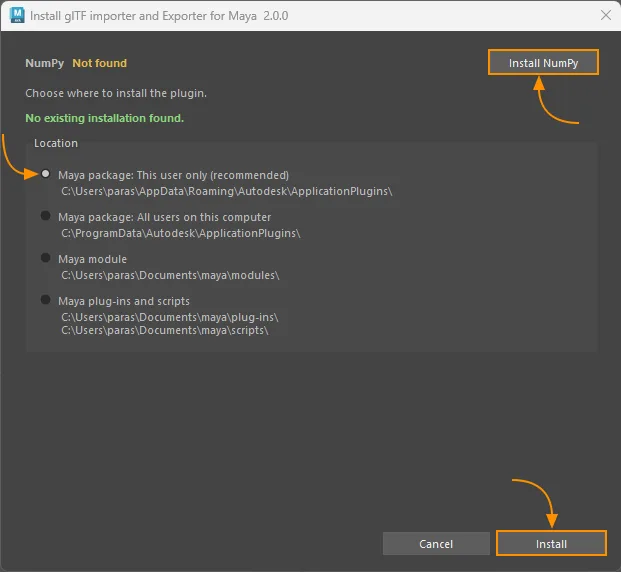
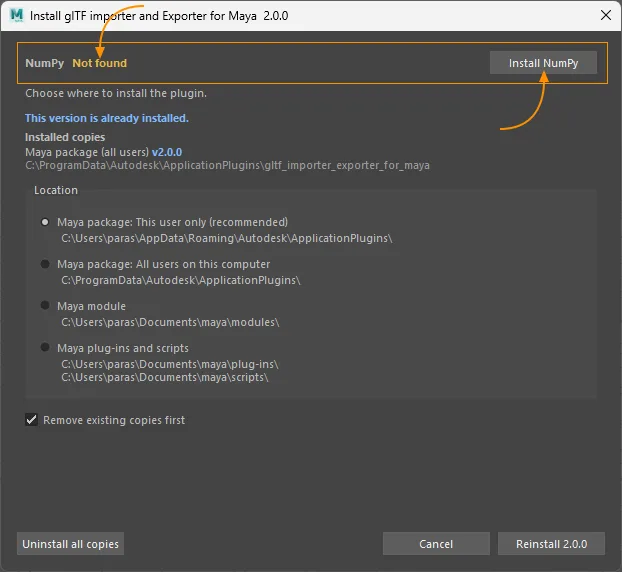
INSTALL.py onto the viewport. If NumPy is missing, click Install NumPy, keep Maya package: This user only, then click Install.The window tells you whether the plugin is already installed, and lists any copies it finds. Uninstall all copies appears only when something is already installed.
After a Maya package install, Maya loads the plugin on its own. The installer can add that folder to Maya’s trusted plugin locations, so you are less likely to get a separate security prompt for each file. For Maya module or Maya plug-ins and scripts, open Windows > Settings/Preferences > Plug-in Manager and turn on Load and Auto Load for the glTF importer and exporter if they are not already on.
Where to install
Pick one location.
| Choice | Who it is for | Loads by itself |
|---|---|---|
| Maya package: This user only (recommended) | Just your account | Yes |
| Maya package: All users | Everyone on this computer | Yes |
| Maya module | Studios that already use Maya modules | No - use Plug-in Manager |
| Maya plug-ins and scripts | A simple copy into Maya's shared folders | No - use Plug-in Manager |
Maya module and Maya plug-ins and scripts go into shared Maya folders, so Maya 2022-2027 on this computer can all use the same install.
All-users install may need Maya opened as administrator (Windows) if you cannot write to that folder.
Maya package (recommended)
| For | Folder |
|---|---|
| This user | %APPDATA%\Autodesk\ApplicationPlugins\ |
| All users | C:\ProgramData\Autodesk\ApplicationPlugins\ |
Maya module - Documents\maya\modules
Maya plug-ins and scripts - Documents\maya\plug-ins and Documents\maya\scripts
macOS and KTX2
The plugin loads on Maya 2022+. KTX2 texture compression is verified for Maya 2026. On other Maya years, import and export still work; some compressed-texture features may not.
Maya package (recommended)
| For | Folder |
|---|---|
| This user | ~/Autodesk/ApplicationAddins/ |
| All users | /Applications/Autodesk/ApplicationAddins/ |
Create ApplicationAddins if it is missing, then restart Maya.
Maya module - ~/Library/Preferences/Autodesk/maya/modules
Maya plug-ins and scripts - plug-ins and scripts under
~/Library/Preferences/Autodesk/maya/
Maya package install is not used on Linux. Choose Maya module
(~/maya/modules) or Maya plug-ins and scripts
(~/maya/plug-ins and ~/maya/scripts). Linux is not fully verified yet -
please report any issues.
NumPy
The plugin needs NumPy. The installer shows Available or Not found.
If it is missing, click Install NumPy. You do not need administrator rights. You do need an internet connection for the download. After NumPy is installed, you can use the plugin offline.
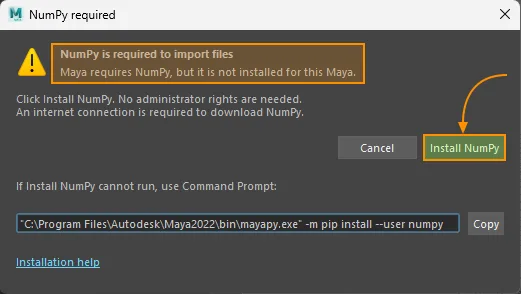
If you import, export, or open Animation Clips or Material Variants without NumPy, Maya opens a NumPy required window. Click Install NumPy there, or use the same button in the installer. Installation help opens this page in your browser (also needs internet).
When the install finishes, choose Re-launch Maya so the new session can see NumPy. Save first if Maya asks. Click OK only if you want to stay in this session for now.
No internet
Connect to the internet and click Install NumPy again. If this computer never goes online, ask your IT team to install NumPy for this Maya, or run the command below on a machine that has internet (same Maya year), then sign in here again.
If the button cannot run
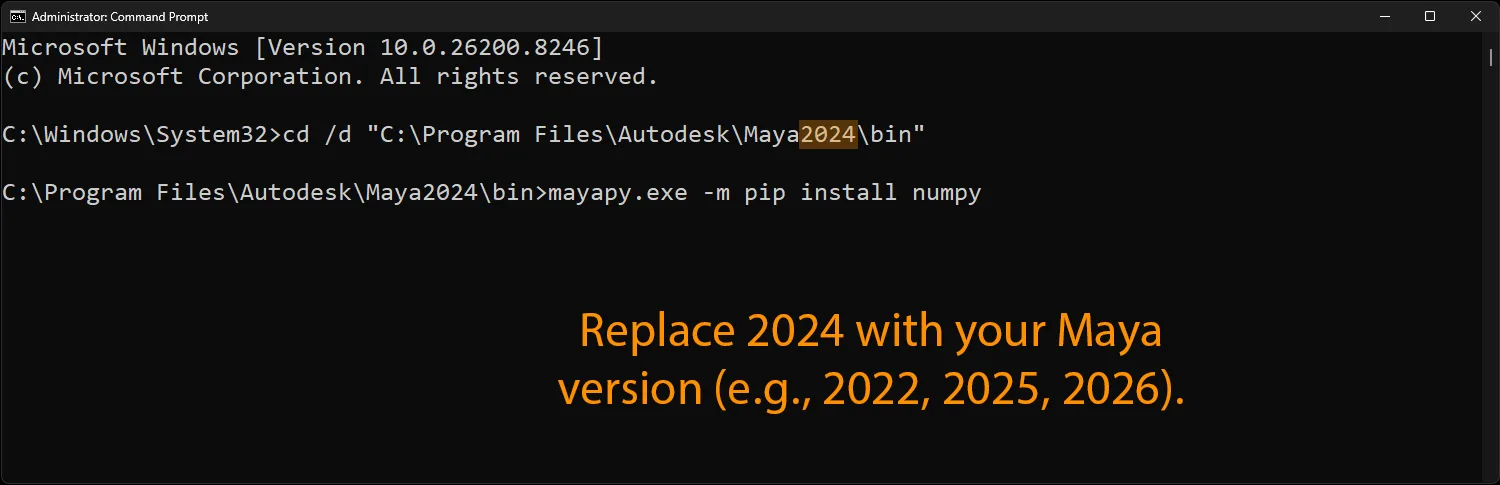
Close extra Maya windows and run the command for your Maya year. Use this Maya's Python, not another Python on the computer.
No administrator (recommended)
Restart Maya. The installer should show Available.
If your studio installs into Maya's own Python instead, run the same command
without --user (administrator / sudo as required).
Check that it worked
- The glTF2.0 menu is in Maya's main menu bar.
- File > Import lists glTF2.0 Import.
- File > Export All or File > Export Selection lists glTF2.0 Export.
If those are missing, look in the Script Editor for a load error, then drag
INSTALL.py again.
Update or uninstall
Drag INSTALL.py onto the viewport again.
- Upgrade or Reinstall updates the location you selected.
- Uninstall all copies removes every copy the installer finds.
- Leave Remove existing copies first on when you switch locations, so only one copy remains.
To remove files yourself, delete the plugin folder from the location you chose
(Maya package, modules, or plug-ins / scripts).