Exporter Guide
Animation Export
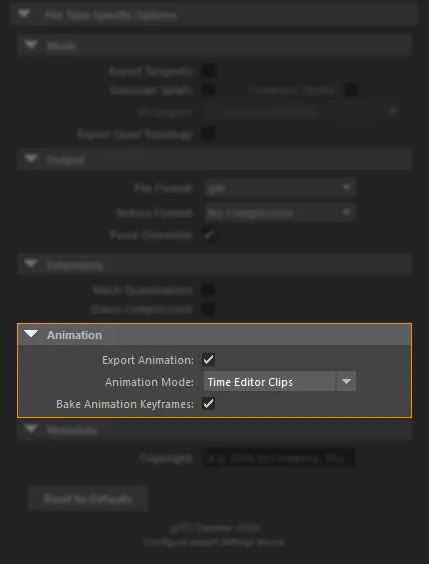
Decide whether to export animation, which Maya source to use, and whether to bake keys for web playback.
-
Export Animation Off
No animation in the file. Use for static look-dev exports.
-
Scene Keys
Uses keys already on your objects. Optional bake for safer web playback.
-
Sampled
Dense keys from the final Maya motion. Best for constraints and complex rigs.
-
Time Editor Clips
One glTF animation per Time Editor clip. Recommended for web and real-time delivery with Bake Animation Keyframes On.
Recommended for web and real-time viewers
Use Time Editor Clips with Bake Animation Keyframes On (default) when exporting for Babylon.js, model-viewer, and other web or real-time runtimes.
Scene Keys
- Exports keys that already exist on your objects
- Bake off - keeps more Maya curve detail for re-import and editing; file can be larger
- Bake on (default) - denser keys that play more reliably in web and real-time viewers (including full rotations)
- Use when the animation you want is already keyed on the scene
Sampled
- Exports the final motion you see when you scrub the timeline
- Prefer this when constraints, motion paths, or complex rigs drive the result
- Files are usually larger than sparse Scene Keys without bake
Time Editor Clips
- Exports each Time Editor clip (or each row from the Animation Clips panel) as its own animation
- Includes clips from every Time Editor composition. The composition selected in Animation Clips is for editing and does not limit the export
- Best when the importer created clips for you, or when you author clips in the Time Editor
- Hold clips such as
stillkeep the correct pose and visibility for that clip in viewers - Visibility show/hide and light intensity animation are supported
- Pair with Bake Animation Keyframes On for web and real-time delivery
Bake Animation Keyframes
Applies to Scene Keys and Time Editor Clips (On by default):
- On (default) - better for Babylon.js and other web / real-time viewers; usually smaller and more predictable
- Off - better for Maya round-trip editing; can make larger files
Full option details: Animation Settings.
Recommended workflow
- Turn Export Animation off if you only need a static model.
- For web and real-time delivery, use Time Editor Clips with Bake Animation Keyframes On (recommended).
- Use Time Editor Clips for imported multi-clip products.
- Use Scene Keys for simple keyed scenes.
- Use Sampled when constraints or complex rigs drive the motion.
- After export, check the Export Log summary for clip names, bake setting, and whether export used the fast or slow animation path.