Metadata
Copyright and Reset
Add copyright information to the exported file and restore all export options to their defaults.
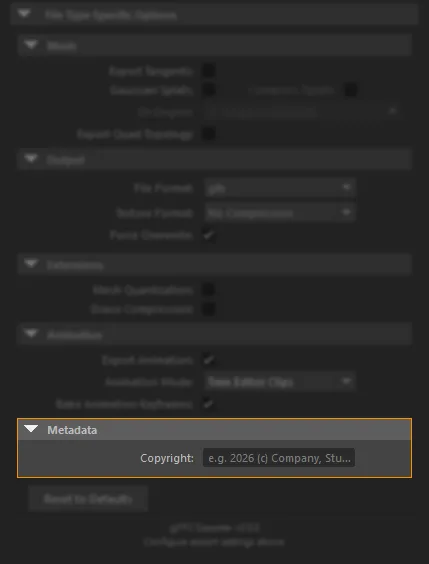
asset.copyright. Use Reset to Defaults below this section to restore the whole panel.Copyright
The text entered here is written into the asset.copyright field of the exported glTF or glb file.
- Optional - leaving it blank omits the field entirely
- Written as plain text, for example:
© 2026 Studio Name - Visible to anyone who opens the file in a text editor or glTF viewer
When to use it:
- Client deliveries where you want studio credit embedded in the file
- Assets shared publicly or submitted to a platform that surfaces metadata
- Studio workflows that rely on copyright data for asset tracking
Reset to Defaults
The Reset to Defaults button restores every export option in the panel to the state it was in when the plug-in was first installed.
| Option | Default value |
|---|---|
| File Format | glb |
| Resources | Copy source files (used when File Format is glTF) |
| Texture Format | No Compression |
| Quality | 90 |
| Force Overwrite | On |
| Export Animation | On |
| Animation Mode | Time Editor Clips |
| Bake Animation Keyframes | On |
| KTX2 Format | ETC1S |
| KTX2 Quality | Medium |
| Supercompression | On |
| Generate Mipmaps | On |
| Compress Normal Maps | Off |
| Draco Compression | Off |
| Draco Preset | Balanced |
| Strip Uncompressed | On |
| Mesh Quantization | Off |
| Export Tangents | Off |
| Gaussian Splats | Off |
| Compress Splats | Off (enabled only when Gaussian Splats is On) |
| SH Degree | 3 (enabled only when Gaussian Splats is On) |
| Export Quad Topology | Off |
| Copyright | (empty) |
Tip
If the export panel is producing unexpected results, clicking Reset to Defaults is the fastest way to rule out a stale setting left over from a previous session.