Exporter Guide
Export Log
Use the Export Log window to review what was exported, check warnings and errors, copy reports, and keep the final result visible after an export finishes.
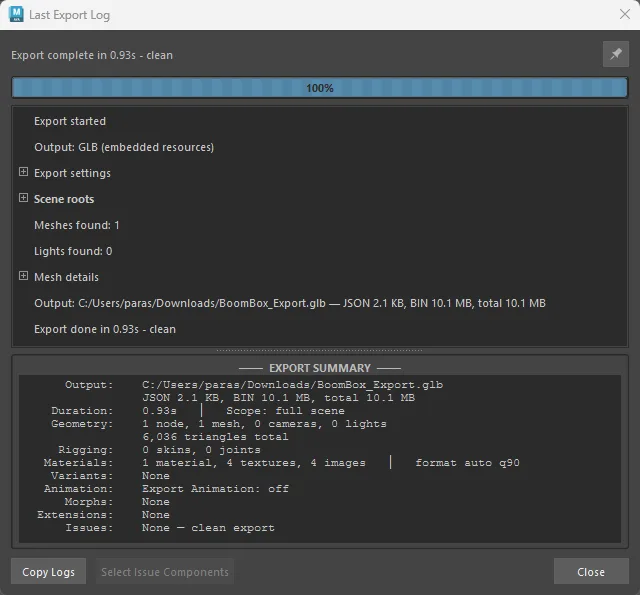
When the Log Appears
The Export Log opens during export and updates as the exporter works through the scene. After the export finishes, you can review the same report from glTF2.0 > Last Export Log.

Use it to answer common export questions quickly:
- Where was the file written?
- How large is the exported file?
- How many meshes, materials, textures, variants, clips, and extensions were exported?
- Are there warnings or errors that need attention?
- Which mesh or component caused an issue?
Pinning the Log Window
Use the pin button in the top-right of the Export Log window to control whether the window stays open after export completes.
| State | Behavior |
|---|---|
| Pinned | The log remains open after export finishes. Use this when you want to inspect results immediately or keep the summary visible while continuing work in Maya. |
| Unpinned | The live export window closes automatically after export finishes. You can still reopen the report from Last Export Log. |
Only one export log window is kept active at a time. Starting a new export closes any older pinned or Last Export Log window before the new live log appears.
Log Sections
The main log area shows export events in order. Some sections use a tree so you can expand or collapse details.
| Section | What it shows |
|---|---|
| Export settings | Scope, animation mode, texture settings, geometry options, and compression settings used for the export. |
| Scene roots | The top-level exported objects and their children, shown in the same hierarchy Maya exports. |
| Mesh details | One row per mesh, including vertex count, face count, UV sets, UV count, static/skinned state, and material names. Mesh-specific warnings and errors appear below the affected mesh. |
| Animation clip ranges | Clip ranges requested for export. These ranges may come from Time Editor clips or direct rows in the Animation Clips panel. A listed range does not always mean animation data was written. |
| Output | The written file path and payload size details. |
Warnings and errors are highlighted so they are easy to find. If a warning includes a recommended action, the log shows it as a Fix: line below the issue.
Export Summary
The summary panel at the bottom stays visible while you inspect the log. It gives a compact final report without scrolling through every entry.
The summary includes:
- Output path and file size
- Duration and export scope
- Scene totals for nodes, meshes, cameras, lights, and triangles
- Rigging totals for skins and joints
- Material, texture, and image counts
- Material variants, listed by name when present
- Animation mode, Bake setting, and whether animation used the fast clip path or slower timeline stepping
- Exported animation clips, listed by name when present
- Morph target totals
- glTF extensions, listed by name
- Error and warning totals grouped by issue type
Use the divider between the log area and the summary area to resize the two sections. Drag it upward to make the summary taller, or downward to give more room to the detailed log.
Common Messages
Animation clip ranges but no animation data
If you see clip ranges such as walk, run, or anim_Clip1, the exporter found requested frame ranges. If the scene has no keyed animation or Time Editor animation data in those ranges, the final summary still shows that no animation channels were written.
For static models, turn off Export Animation to skip animation work entirely.
Mesh has no UVs
This means a mesh has no UV coordinates. Textured materials may export without valid texture placement on that mesh.
Create UVs for the mesh, or remove texture inputs that require UV coordinates.
Zero-area faces
This means the mesh contains faces that collapse to zero or near-zero area after triangulation. These can cause export or shading problems.
Run Maya Mesh Cleanup for zero-area or lamina faces, then retriangulate or rebuild the affected faces.
Material variants
The log calls out Material Variants problems you can fix in the panel before you export again:
- An Empty look was left out because Export Empty variants is off
- Original has no mesh assignment
- A variant points at a shader that is no longer in the scene
UV tangent fallbacks
This means the exporter generated fallback tangents because the UV layout contains triangles with zero-area texture coordinates. The file can still export, but normal-map shading may differ slightly.
Inspect UV set 0 if you notice visible normal-map shading artifacts.
Buttons and Actions
| Control | Effect |
|---|---|
| Copy Logs | Copies the full export log and summary to the clipboard. |
| Select Issue Components | Selects the Maya objects or components attached to the currently selected issue row, when available. |
| Pin | Keeps the export log window open after export completes. |
| Close | Closes the completed log window. During export, this button is shown as Cancel. |
You can also right-click inside the log to copy the selected row, copy the full log, copy only issues, expand all rows, collapse all rows, or select issue components when the selected issue has selectable targets.